Here’s how registration and your first steps on ICmatch go. If you get interrupted or confuzzled along the way, this page can help you figure out what’s next, or describe to the help personnel where you’re stuck. Everything below is free.
Register and create your profile
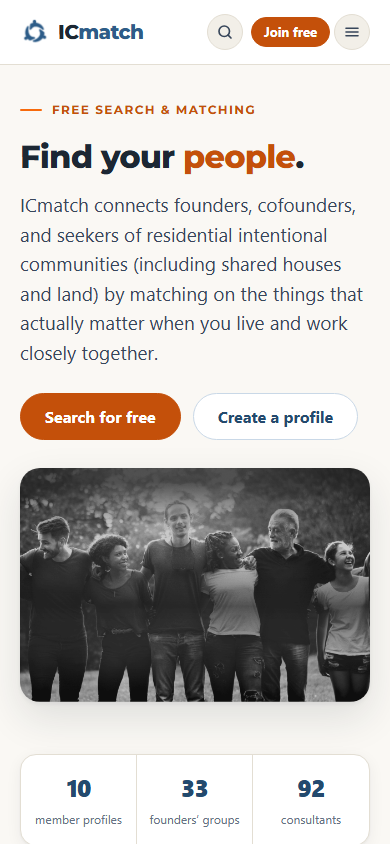
1. Join free. Open ICmatch.org. Tap the orange “Join free” button at the top right of any page, or “Create a profile” on the home page.
2. Read the terms of use.
Please take two minutes to read at least the first section of the Terms of Use.
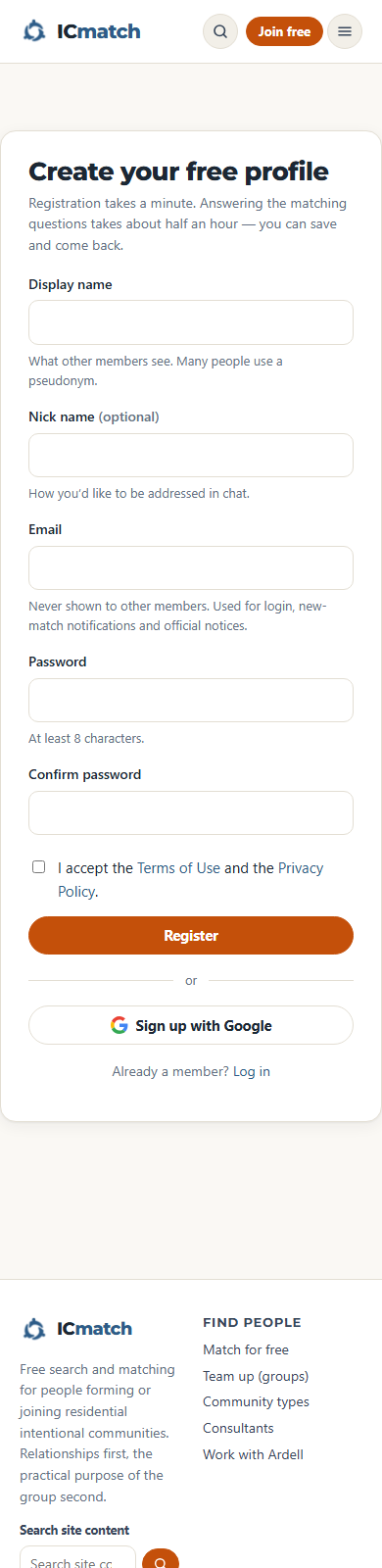
3. Create your profile. Fill in a display name, your email address and a password (a nick name is optional). Tick the box to accept the terms, then tap “Register.” If you have a Google account you can instead tap “Sign up with Google” and skip the password. There is no separate username: you log in with your email address.
4. Confirm your email address. We send you an email with a confirmation link. If you don’t see it within a few minutes, check your spam folder. Click the link, then log in.
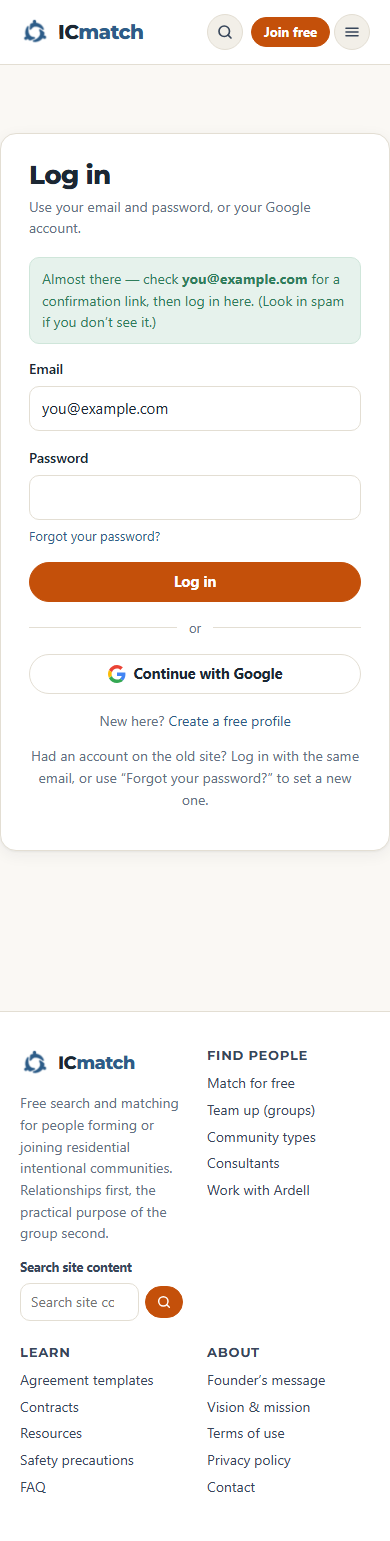
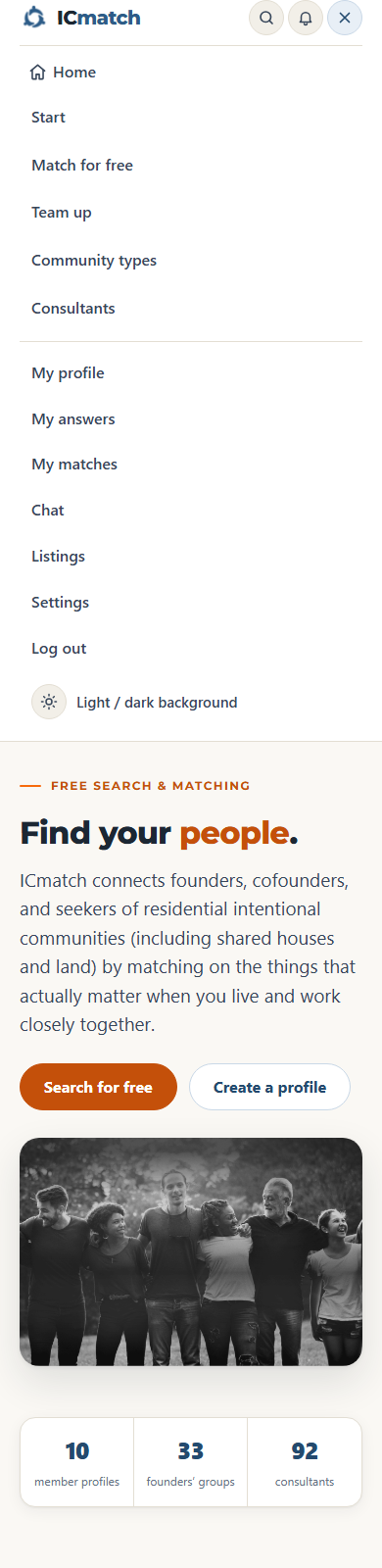
5. Log in. On a phone, open the menu (☰) and tap “Log in”; on a computer the button is at the top right. Enter your email and password, or tap “Continue with Google.” If you forget your password, use “Forgot your password?” on the login page.
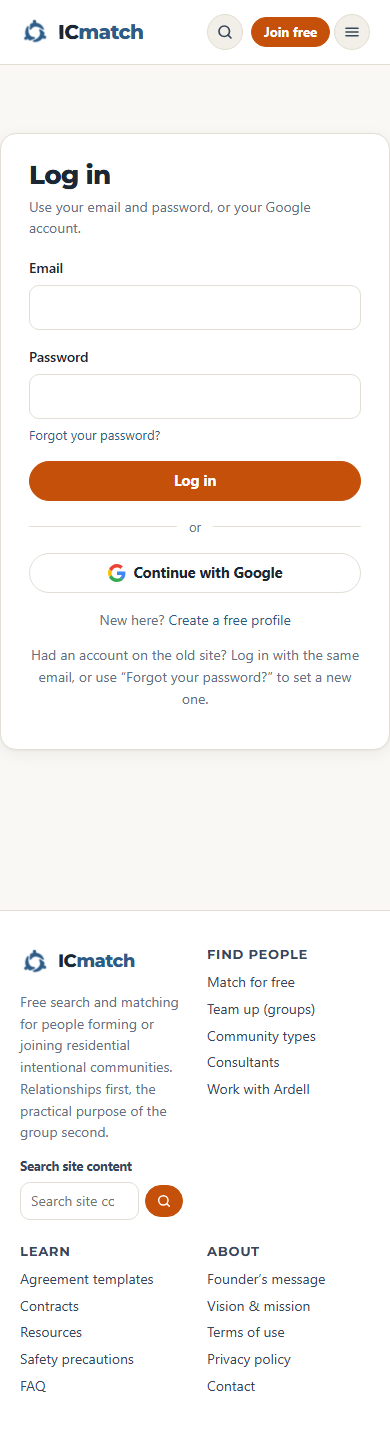
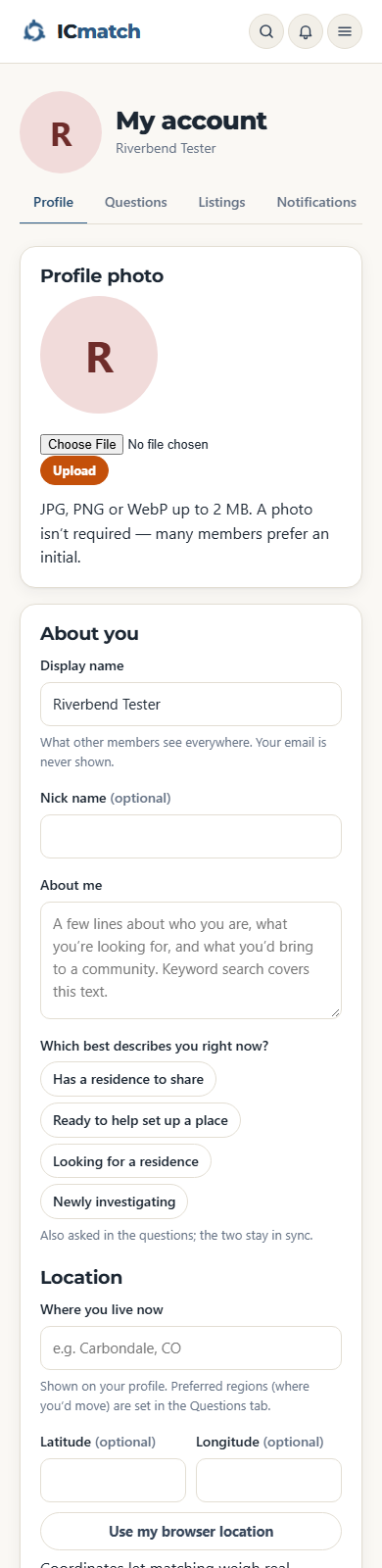
6. Add a photo and a short introduction. After logging in you land on “My account.” On the “Profile” tab you can upload a photo, write a few lines about yourself and set your location, then save. You are never required to show your real name or contact details; share only what you are comfortable with.
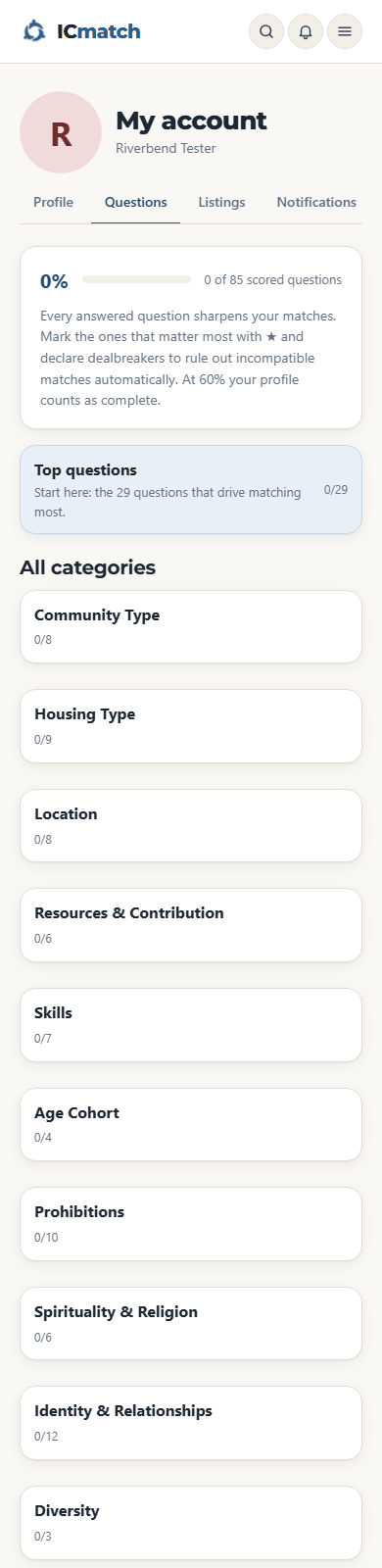
7. Answer the matching questions. Open the “Questions” tab. Start with “Top questions”: the 29 questions that drive matching most, about half an hour. Answers save as you go, so you can stop at any time and come back later. Then continue through “All categories.” At 60% your profile counts as complete, and the more you answer, the better your matches.
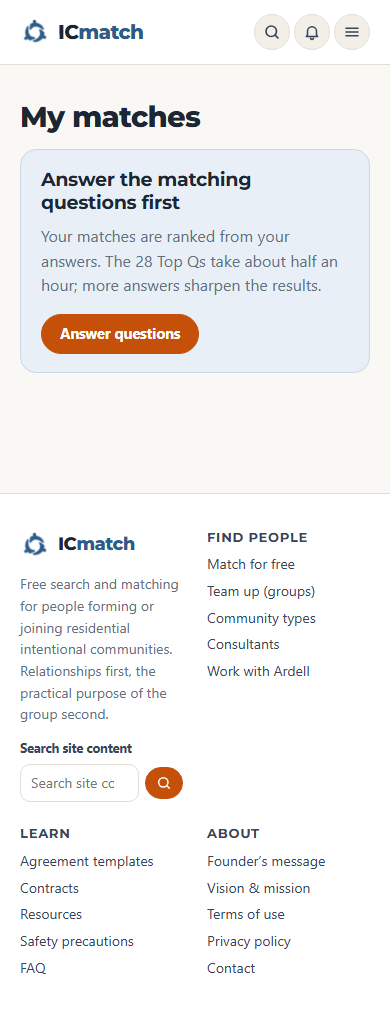
8. See your matches. Open “My matches” from the menu. Each match shows a compatibility score from 0 to 100 and explains where you agree and where you differ. The bell icon at the top shows a badge when you have a new match or message. You can turn email notifications on or off under “Settings.”
9. Start a conversation. On any member’s profile, tap “Message.” All your conversations are listed under “Chat.” You don’t need to share an email address or phone number; keep the conversation on ICmatch until you feel comfortable. Below the message box you’ll find three ready-made polite replies, and every profile has “Block” and “Report” buttons.
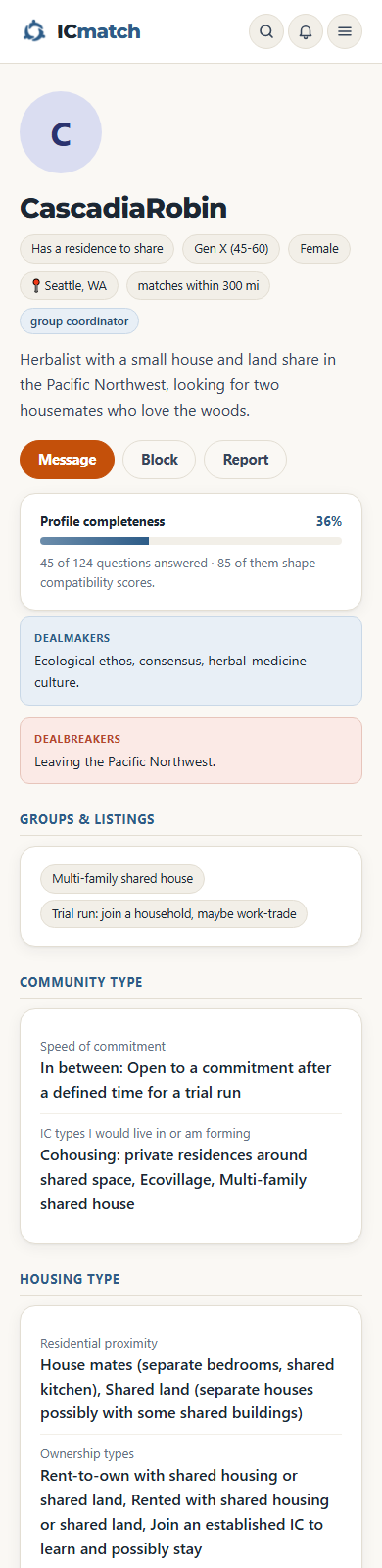
10. Find everything in the menu. When you come back later, log in again. On a phone the menu (☰), and on a computer the “Account” menu, hold the links My profile, My answers, My matches, Chat, Listings, Settings and Log out.
Create or join a group
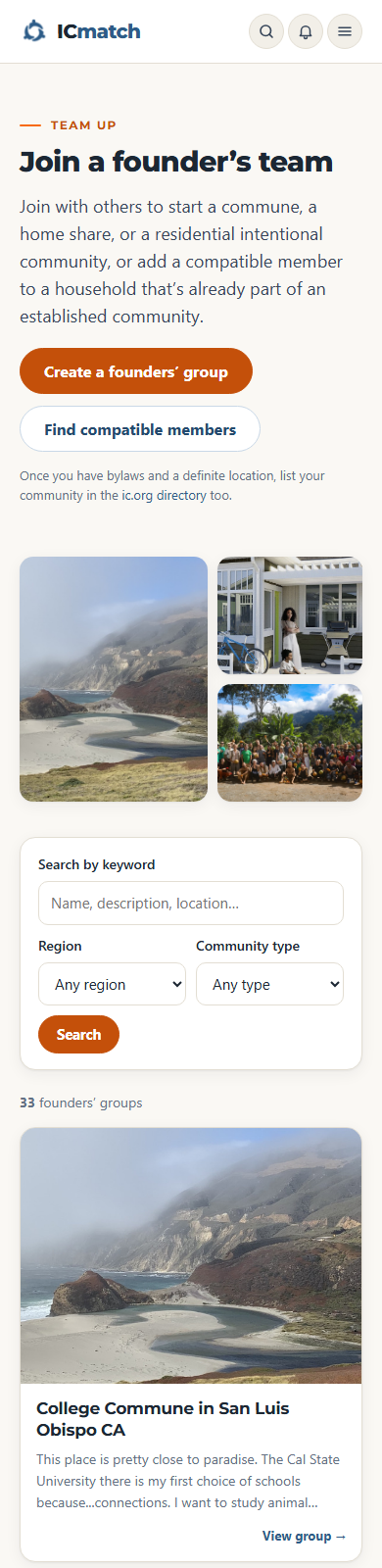
Open “Team up” in the header and tap “Create a founders’ group.” Give your group a name, a short description, a region and a community type. Your group page links to your profile and shows the members who join, and other members can ask to join. On the same page, use the search fields to find existing groups and tap “View group” to read more.